Motion
GSAP horizontal scroll section in React and Next.js
Pin the section, move the track by its real overflow, animate cards inside it, and give phones a native swipe instead.
By Nabeel Mustafa··Updated ·6 min read

A GSAP horizontal scroll section pins a full-height section, then moves a wide track to the left as the user scrolls down. You need three things: pin: true on the section, scrub so the track follows the scrollbar, and an x value that equals the track's real overflow, measured with a function so it updates on resize. Below is the full React version I use, the same one on the home page of this site.
npm install gsap @gsap/reactBefore writing code, try the moving parts in my scroll playground. Changing scrub and easing there makes the settings below much easier to reason about.
How to build a GSAP horizontal scroll section in React
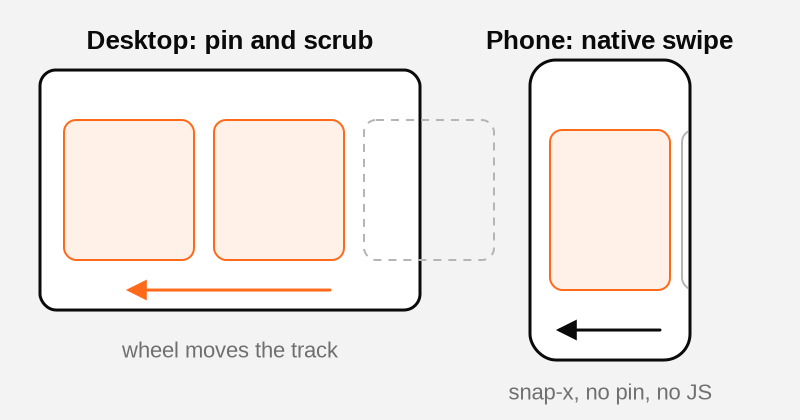
The markup is a section with a track inside. The track is a flex row wider than the screen. On desktop, GSAP pins the section and translates the track. Below the desktop breakpoint, the track is a native swipe row, so it works with no JavaScript at all.
"use client";
import { useRef } from "react";
import { gsap, useGSAP } from "@/lib/gsap";

const panels = ["Research", "Design", "Build", "Launch"];

export default function HorizontalScroll() {
  const root = useRef<HTMLElement>(null);
  const track = useRef<HTMLDivElement>(null);

  useGSAP(
    () => {
      const mm = gsap.matchMedia();

      mm.add("(min-width: 1024px) and (prefers-reduced-motion: no-preference)", () => {
        // How far the track must travel: its width minus one screen.
        const distance = () => track.current!.scrollWidth - window.innerWidth;

        gsap.to(track.current, {
          x: () => -distance(),
          ease: "none",
          scrollTrigger: {
            trigger: root.current,
            start: "top top",
            end: () => "+=" + distance(),
            pin: true,
            scrub: 1,
            anticipatePin: 1,
            invalidateOnRefresh: true,
          },
        });
      });
    },
    { scope: root },
  );

  return (
    <section ref={root} className="overflow-hidden lg:h-svh">
      <div
        ref={track}
        className="flex snap-x snap-mandatory gap-6 overflow-x-auto px-6 lg:h-full lg:w-max lg:snap-none lg:items-center lg:overflow-visible"
      >
        {panels.map((title) => (
          <article key={title} className="w-[80vw] shrink-0 snap-start lg:w-[60vw]">
            <h3>{title}</h3>
          </article>
        ))}
      </div>
    </section>
  );
}
Use ease: "none" on the tween. With scrub, the scroll position already is the timing, and any ease makes the track speed up and slow down in a way that feels detached from the wheel. Smoothing comes from scrub: 1, which makes the track take about one second to catch up.
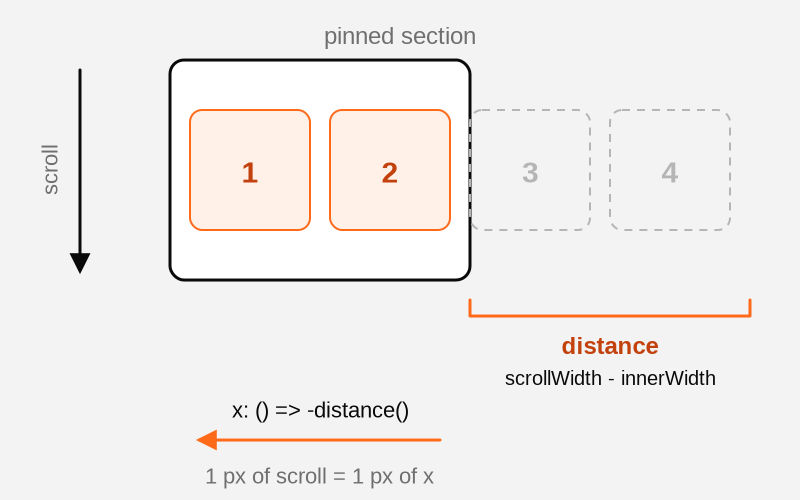
Why use a function value and invalidateOnRefresh?
Many tutorials use xPercent: -100 * (panels.length - 1). That works only when every panel is exactly one screen wide. Real tracks have gaps, padding and cards of different widths, so the end of the track either stops short or overshoots.
Measuring scrollWidth - window.innerWidth gives the exact overflow. Wrapping it in a function, x: () => -distance(), lets GSAP call it again later. invalidateOnRefresh: true tells GSAP to throw away the recorded values and call the functions again every time ScrollTrigger refreshes, which happens on resize. The end uses the same function, so the pinned scroll distance always matches the horizontal distance, and the track moves one pixel per pixel of scroll.
How to animate elements inside the horizontal track
Once the track moves sideways, normal ScrollTriggers on the cards inside it break. Their trigger positions are based on vertical scroll, but the cards are moving horizontally. The fix is containerAnimation: you pass the tween that moves the track, and ScrollTrigger measures start and end along that horizontal movement.
const scrollTween = gsap.to(track.current, {
  x: () => -distance(),
  ease: "none",
  scrollTrigger: {
    trigger: root.current,
    start: "top top",
    end: () => "+=" + distance(),
    pin: true,
    scrub: 1,
    invalidateOnRefresh: true,
  },
});

// Each image drifts inside its frame while its card crosses the screen.
gsap.utils.toArray<HTMLElement>(".panel").forEach((panel) => {
  gsap.fromTo(
    panel.querySelector(".panel-image"),
    { xPercent: -10 },
    {
      xPercent: 10,
      ease: "none",
      scrollTrigger: {
        trigger: panel,
        containerAnimation: scrollTween,
        start: "left right",
        end: "right left",
        scrub: true,
      },
    },
  );
});
Note the start and end values. With containerAnimation, "left right" means the left edge of the panel meets the right edge of the screen. Two limits to know: the container tween must use ease: "none", and you cannot pin or snap triggers that use containerAnimation.
This is the same parallax the home page of nabe.pro uses in its work section. The image inside each card moves at a different speed from the card, which adds depth for very little cost, since it is only a transform.
What to do on mobile: native scroll or a vertical stack
I do not run the pinned version on phones. On a touch screen, the user swipes up and the content moves sideways, which feels like the page is fighting them. Pinning on mobile also interacts badly with the browser's address bar, which changes the viewport height as you scroll.
There is also a simple honesty test. If the horizontal movement is the point of the section, for example a row of project covers, a phone user loses little with a swipe row. If it is a story with steps, a vertical stack reads better on a small screen anyway.
gsap.matchMedia() solves this cleanly. The code inside mm.add() runs only when the query matches, and GSAP reverts it, pin spacer included, when the query stops matching. You have two good fallbacks:
- Native horizontal scroll. The track keeps
overflow-x: autoand CSSscroll-snap. People already know how to swipe a carousel. This is what the component above does belowlg. - A vertical stack. Below the breakpoint, the track becomes a column,
flex-col, and each panel is a normal block. Best when the panels hold text people should read.
The media query in the example also checks prefers-reduced-motion: no-preference, so people who asked for less motion get the native layout on desktop too. The content is the same either way. Only the presentation changes.
Common problems with horizontal scroll in Next.js
- The section ends too early or too late after navigating. Positions were measured before the page had its final height. Refresh ScrollTrigger after route changes, as shown in how to set up GSAP in the Next.js App Router.
- The page scrolls sideways. The track overflows the body. Put
overflow: hidden(oroverflow-x: clip) on the pinned section, not on the body. - Sections below it are in the wrong place. Create ScrollTriggers in page order, top to bottom, or call
ScrollTrigger.sort()and refresh. A pin adds space that later triggers must know about. - It feels steppy with a mouse wheel. Raise
scrubto 1 or more, or add smooth scrolling, as in Lenis smooth scroll in Next.js.
More GSAP ScrollTrigger examples
A horizontal section is one of a handful of ScrollTrigger patterns that cover most scroll-driven sites. If you are building one, these usually come next:
- A section that holds still while a timeline plays: how to pin a section with ScrollTrigger in React.
- Text that reveals line by line as you scroll: GSAP text animation with SplitText.
- An endless strip of logos or words that speeds up with the scroll: infinite marquee with GSAP in React.
- Smooth scrolling that stays in sync with every trigger: Lenis smooth scroll in Next.js.
To try pinned, scrubbed and parallax setups before you write any code, tune them live in the scroll animation generator and copy the code it gives you.
Wrapping up
Pin the section, scrub the track with ease: "none", measure the distance with a function and invalidateOnRefresh, use containerAnimation for anything inside the track, and fall back to native scrolling on phones and for reduced motion. That pattern holds up across screen sizes and route changes. If you want a section like this built for your site, see how I work on motion.
Frequently asked questions
Why does my horizontal scroll section jump when it pins?
The jump usually comes from the pin spacer being added after the page has scrolled past the start, or from layout shifting under it. Add anticipatePin: 1 so ScrollTrigger applies the pin slightly early, make sure images in the track have fixed sizes, and call ScrollTrigger.refresh() after fonts load. Smooth scrolling with Lenis also hides small jumps.
Can I use snap with a GSAP horizontal scroll?
Yes. Add snap: 1 / (panels.length - 1) to the ScrollTrigger when every panel is one screen wide, and it settles on the nearest panel when scrolling stops. For panels of different widths, pass an array of progress values or the string "labelsDirectional" with a timeline that has a label per panel. Keep the snap duration short so it does not fight the user.
How do I link to a specific panel inside a horizontal scroll?
Panels have no vertical position of their own, so a normal hash link will not find them. Work out the scroll position instead: take the ScrollTrigger's start, then add the panel's offsetLeft scaled by the ratio of vertical scroll distance to horizontal distance. Scroll the window there with window.scrollTo or lenis.scrollTo.
Is a horizontal scroll section bad for accessibility?
It can be. Keyboard users move through it with Tab, and focus may land on a card that is off screen. Keep the content in normal reading order, make focused cards visible, and give reduced motion users the native layout. Never put essential information only in the horizontal part, and test it with a keyboard before you ship.
Related guides




Next article
GSAP page transitions in Next.js (App Router)
Enter animations with template.tsx, a full overlay wipe that covers the old page before the new one loads, and where View Transitions fit in.
Read