Motion
How to pin a section with ScrollTrigger in React
How to pin a section while a timeline plays, what pinSpacing and end values really do, why pins can fight React, and when CSS sticky is the better tool.
By Nabeel Mustafa··6 min read
To build a ScrollTrigger pin section in React, create a timeline inside useGSAP with scrollTrigger: { trigger, pin: true, scrub: true, start: "top top", end: "+=200%" }. The section stays fixed while you scroll the length of end, and the timeline plays with the scrollbar. useGSAP reverts the pin when the component unmounts. For many layouts, CSS position: sticky with a scrubbed timeline does the same job with fewer surprises, and I show both below.
"use client";

import { useRef } from "react";
import { gsap, useGSAP, prefersReducedMotion } from "@/lib/gsap";

export default function PinnedSteps() {
  const root = useRef<HTMLElement>(null);

  useGSAP(
    () => {
      if (prefersReducedMotion()) return;
      const tl = gsap.timeline({
        scrollTrigger: {
          trigger: root.current,
          start: "top top",
          end: "+=200%",
          pin: true,
          scrub: 1,
          anticipatePin: 1,
          invalidateOnRefresh: true,
        },
      });
      tl.fromTo(".step-2", { yPercent: 100 }, { yPercent: 0, ease: "none" })
        .fromTo(".step-3", { yPercent: 100 }, { yPercent: 0, ease: "none" });
    },
    { scope: root },
  );

  return (
    <section ref={root} className="relative h-svh overflow-hidden">
      <div className="step-1 absolute inset-0">One</div>
      <div className="step-2 absolute inset-0">Two</div>
      <div className="step-3 absolute inset-0">Three</div>
    </section>
  );
}
How a ScrollTrigger pin section works in React
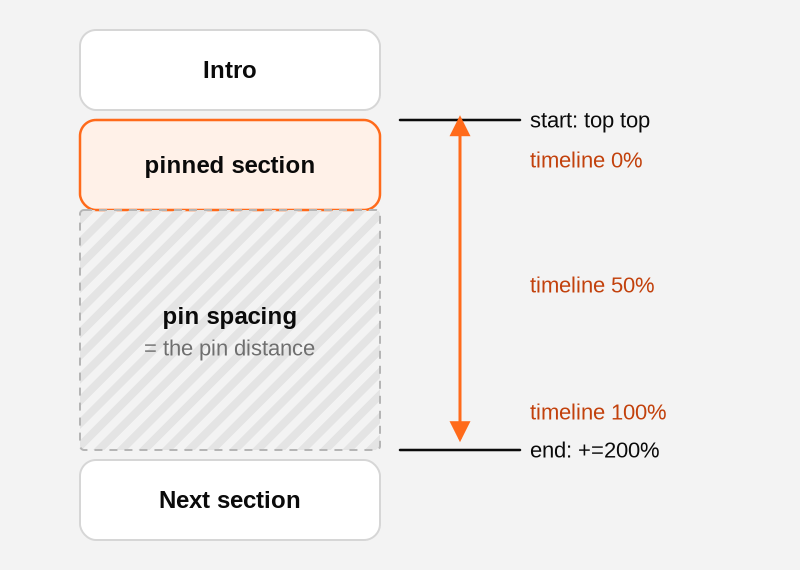
When the trigger reaches start, ScrollTrigger fixes the element in place. When the scroll position reaches end, it releases it and the page carries on. While it is pinned, a scrubbed timeline maps scroll distance to timeline progress: halfway through the pin, the timeline is at 50 percent.
With scrub: true the timeline follows the scrollbar exactly. With a number, like scrub: 1, it takes that many seconds to catch up, which smooths out mouse wheel steps. Use ease: "none" on scrubbed tweens. The scroll is the ease; a second ease on top makes the motion feel off.
Choosing the end value
end decides how long the pin lasts. "+=200%" means two viewport heights of scrolling after start. "+=1500" means 1,500 pixels. You can also pass a function, which is useful when the distance depends on content, like a horizontal track: end: () => "+=" + track.scrollWidth. ScrollTrigger runs start and end functions again on every refresh. For tween values that are functions, like x: () => -distance, add invalidateOnRefresh: true so they are recalculated too.
A good rule: give each step of the timeline roughly one viewport of scroll. Less, and people fly past it on a trackpad. Much more, and it feels like the page is stuck.
What pinSpacing does
By default ScrollTrigger adds padding below the pinned element equal to the pin distance. That is pinSpacing: true, and it is why the next section waits until the pin is done. Set pinSpacing: false when you want the next section to scroll up over the pinned one, which is the base of a card stack effect. One quirk I found in the source: if the pinned element's parent is a flex container and you do not set pinSpacing, it defaults to false.
Why a pinned section can break in React
To pin, ScrollTrigger wraps your element in a new div with the class pin-spacer. That wrapper holds the space while the element is fixed. React does not know about it. React still thinks your section is a direct child of its old parent.
Most of the time this is fine, because useGSAP reverts the pin and removes the wrapper on unmount. The trouble starts when React changes the DOM around the pinned element while it is pinned: a sibling that renders conditionally, a parent that re-renders with a new key, or a route change in the middle of a pin. Then the order of cleanup matters, and you can get errors about nodes that are not children of their parent, or updates to components that already unmounted.
I hit this on this site. One section used a GSAP pin, and React reported a state update on an unmounted component during navigation. I switched that section to CSS position: sticky with a scrubbed timeline, and the problem went away, because nothing in the DOM moves any more.
- Pin an element whose parent React never re-renders with different children. A plain wrapper
divaround the section is a good place. - Do not render the pinned element conditionally. Hide content inside it instead.
- Keep state that changes during the pin out of the pinned component, or keep it in refs.
- If the section only needs to hold still while something animates, use CSS sticky.
Pin a section with CSS sticky instead
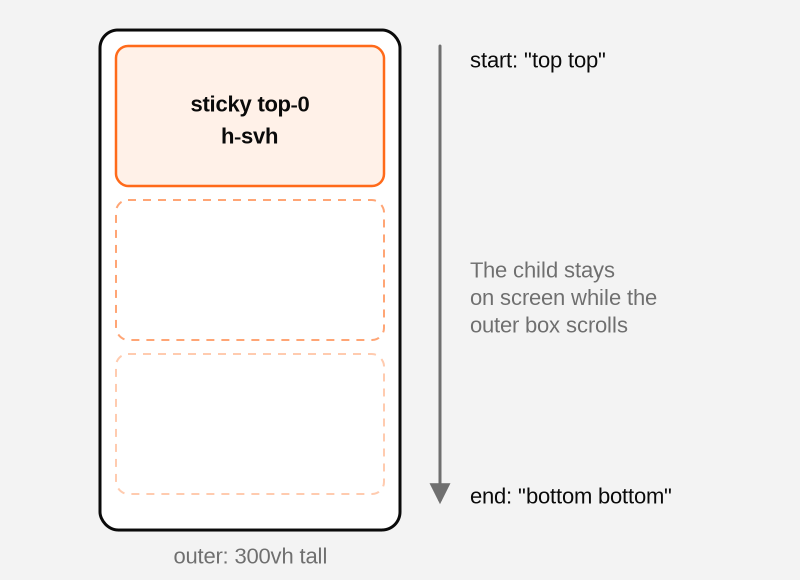
CSS sticky gives you the same look with no wrapper. Make an outer element as tall as the scroll you want, put a full-height sticky child inside, and scrub a timeline from the outer element's top to its bottom.
useGSAP(
  () => {
    if (prefersReducedMotion()) return;
    gsap
      .timeline({
        scrollTrigger: { trigger: root.current, start: "top top", end: "bottom bottom", scrub: 1 },
      })
      .fromTo(".step-2", { yPercent: 100 }, { yPercent: 0, ease: "none" })
      .fromTo(".step-3", { yPercent: 100 }, { yPercent: 0, ease: "none" });
  },
  { scope: root },
);

return (
  <section ref={root} className="relative h-[300svh]">
    <div className="sticky top-0 h-svh overflow-hidden">
      <div className="step-1 absolute inset-0">One</div>
      <div className="step-2 absolute inset-0">Two</div>
      <div className="step-3 absolute inset-0">Three</div>
    </div>
  </section>
);
The outer height sets the scroll length: 300svh gives one viewport of stuck time per extra screen. The browser does the pinning, so it is smooth on every device, and React owns every node. Two rules for sticky: no ancestor may have overflow: hidden (use overflow: clip if you must clip), and the sticky child needs a top value.
I still use a GSAP pin when the distance depends on content, like the horizontal Work section on my home page, which pins and scrolls a row of projects by its own width. That one uses pinType: "transform", so the section moves with a transform instead of position: fixed. That also stopped Chrome from counting each frame as a layout shift. My horizontal scroll guide covers that build.
Fix ScrollTrigger refresh order and mobile issues
A pin adds scroll distance, so every trigger below it depends on it. ScrollTrigger measures triggers in the order they are created. In React, effects do not always run in page order (child effects run before parent effects, and lazy components mount later), and then triggers below the pin can be measured without it, so their start positions are off by the pin length.
- Set
refreshPriorityon the pin to a higher number than triggers below it, or callScrollTrigger.sort()after setup. - Call
ScrollTrigger.refresh()after fonts load and after content changes height. On this site aResizeObserveron the body does it, with a short debounce. - Use
invalidateOnRefresh: truewhen tween values come from functions. - Turn on
markers: truewhile you build. It shows exactly where start and end are.
On phones, keep pins short or turn them off. The address bar shows and hides as you scroll, which changes the viewport height; use svh units so the section does not jump. A pinned horizontal row is often better as a native swipe row on small screens. gsap.matchMedia() makes that easy: create the pin only inside mm.add("(min-width: 1024px)", ...), and the mobile layout gets plain CSS.
Want to feel the settings before you write code? The scroll playground in my Lab lets you change scrub, start, end and ease on live presets and copy the code it generates.
Wrapping up
A ScrollTrigger pin is a timeline plus pin: true, scrub and an end that gives each step about a viewport of scroll. In React, remember the pin-spacer wrapper, keep the pinned element stable, and fix refresh order. When the section only needs to hold still, CSS sticky with a scrubbed timeline is simpler and plays well with React. If you want scroll work like this planned and built for your product, see how I work on motion.
Frequently asked questions
Why does my pinned section jump when it starts pinning?
When you scroll fast, the browser paints a frame before ScrollTrigger switches the element to fixed, so it moves a little and snaps back. Set anticipatePin: 1 to apply the pin slightly early. If the jump comes from a smooth scroll library, try pinType: "transform" so the pin moves with a transform instead.
Why is there a big empty space after my pinned section?
That is pinSpacing. It adds padding equal to the pin distance so the next section waits until the pin ends. If you want the next section to slide over the pinned one, set pinSpacing: false. Check that end is not far larger than the animation needs, because extra distance becomes extra empty scroll.
Can I pin inside a horizontal scroll or nested pin?
Do not nest pins. Pin one outer section and animate the inner pieces with one timeline, or use containerAnimation to trigger things inside a horizontal track. If an element sits inside a pinned section and has its own ScrollTrigger, set pinnedContainer to the pinned element so its start and end are measured correctly.
Does pinning work with Lenis smooth scroll?
Yes. Forward Lenis scroll events to ScrollTrigger.update and ScrollTrigger reads the right position. Pins work as normal. If you see a small shake at the pin start, try pinType: "transform" on that trigger. On this site the pinned horizontal Work section runs under Lenis with that setting.
Related guides

Next article
How to build an AI wrapper app that people pay for
What makes a wrapper worth paying for, the Next.js architecture I use, a streaming route you can copy, and the checklist I run before launch.
Read