Motion
Custom cursor follow animation with GSAP quickTo
A smooth cursor follower in React, hover states from data attributes, magnetic buttons, and the checks that keep it off touch screens and out of the way of people who need the real cursor.
By Nabeel Mustafa··6 min read
A GSAP cursor follow animation moves an element to the pointer on every pointermove, with a short ease so it trails behind a little. The fast way to do it is gsap.quickTo(), which builds one reusable tween per property instead of a new tween on every mouse event. Add hover states from data attributes, turn it on only for fine pointers, and skip it when the user asks for reduced motion.
"use client";

import { useRef } from "react";
import { gsap, useGSAP, prefersReducedMotion } from "@/lib/gsap";

export default function CursorFollower() {
  const dot = useRef<HTMLDivElement>(null);
  const ring = useRef<HTMLDivElement>(null);

  useGSAP(() => {
    if (prefersReducedMotion() || !window.matchMedia("(pointer: fine)").matches) return;

    gsap.set([dot.current, ring.current], { xPercent: -50, yPercent: -50, autoAlpha: 0 });

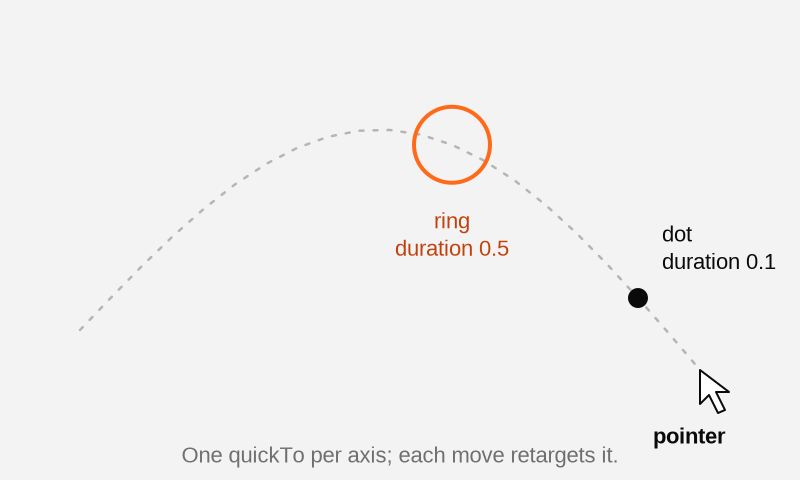
    const dotX = gsap.quickTo(dot.current, "x", { duration: 0.1, ease: "power3" });
    const dotY = gsap.quickTo(dot.current, "y", { duration: 0.1, ease: "power3" });
    const ringX = gsap.quickTo(ring.current, "x", { duration: 0.5, ease: "power3" });
    const ringY = gsap.quickTo(ring.current, "y", { duration: 0.5, ease: "power3" });

    const onMove = (e: PointerEvent) => {
      gsap.set([dot.current, ring.current], { autoAlpha: 1 });
      dotX(e.clientX);
      dotY(e.clientY);
      ringX(e.clientX);
      ringY(e.clientY);
    };

    window.addEventListener("pointermove", onMove, { passive: true });
    return () => window.removeEventListener("pointermove", onMove);
  });

  return (
    <>
      <div ref={ring} aria-hidden className="pointer-events-none fixed left-0 top-0 z-[9999] size-10 rounded-full border border-current" />
      <div ref={dot} aria-hidden className="pointer-events-none fixed left-0 top-0 z-[9999] size-1.5 rounded-full bg-current" />
    </>
  );
}
Mount it once in the root layout. Both elements are fixed at the top left, and GSAP moves them with transforms. xPercent and yPercent of -50 center each shape on the pointer. They start hidden and show on the first move, so there is no dot stuck in the corner before the mouse moves.
Why quickTo suits a GSAP cursor follow animation
The naive version calls gsap.to(el, { x, y }) on every pointermove. A mouse can fire many events per frame, so you create and kill a lot of tweens, and each one has to look up the element and parse its values. quickTo does that work once. It returns a function, and each call just redirects the existing tween to a new end value from where it is now.
The duration you pass is the feel. Around 0.1 seconds feels attached. Around 0.5 to 0.8 feels like a soft trail. Pair a fast dot with a slow ring and you get both: precise aim and a bit of life.
The lerp alternative
Some people prefer a lerp: every frame, move a fraction of the remaining distance. It has no fixed duration, so it never feels like it is "arriving". With GSAP you run it on the ticker. deltaRatio() keeps the speed the same on 60 Hz and 120 Hz screens.
const pos = { x: 0, y: 0 };
const mouse = { x: 0, y: 0 };
const setX = gsap.quickSetter(ring.current, "x", "px");
const setY = gsap.quickSetter(ring.current, "y", "px");

const onMove = (e: PointerEvent) => {
  mouse.x = e.clientX;
  mouse.y = e.clientY;
};
const tick = () => {
  const t = 1 - Math.pow(1 - 0.15, gsap.ticker.deltaRatio());
  pos.x += (mouse.x - pos.x) * t;
  pos.y += (mouse.y - pos.y) * t;
  setX(pos.x);
  setY(pos.y);
};

window.addEventListener("pointermove", onMove, { passive: true });
gsap.ticker.add(tick);
return () => {
  window.removeEventListener("pointermove", onMove);
  gsap.ticker.remove(tick);
};
useGSAP does not know about ticker functions, so you must remove the tick in the cleanup yourself. I use quickTo for most builds; it is shorter and does the same thing.
How to add hover states with data attributes
Do not attach listeners to every link. Listen once for pointerover on the window and read the nearest interactive element with closest(). This is how the cursor on this site works: links and buttons switch it to an arrow shape, and any element with data-cursor="View" turns it into a pill with that label.
const onOver = (e: PointerEvent) => {
  const target = (e.target as Element).closest<HTMLElement>("a, button, [data-cursor]");
  const label = target?.dataset.cursor;
  if (label) setMode("pill", label);
  else if (target) setMode("go");
  else setMode("arrow");
};
window.addEventListener("pointerover", onOver, { passive: true });
On a project card, the markup is just <a href="/work/teasertrack" data-cursor="View">. setMode changes the look. In my case one SVG path morphs between three shapes with MorphSVG, which is free in the gsap package since 3.13. For a simple follower, scale the ring up and fade in a label:
const setMode = (mode: "default" | "link" | "label", text = "") => {
  labelEl.current!.textContent = text;
  gsap.to(ring.current, { scale: mode === "default" ? 1 : mode === "link" ? 1.6 : 2.4, duration: 0.3, overwrite: "auto" });
  gsap.to(labelEl.current, { autoAlpha: mode === "label" ? 1 : 0, duration: 0.2, overwrite: "auto" });
};
Return early in setMode when the mode has not changed, as pointerover fires a lot. Use overwrite: "auto" on state tweens so a fast move across many links does not stack animations.
Make magnetic buttons with GSAP quickTo
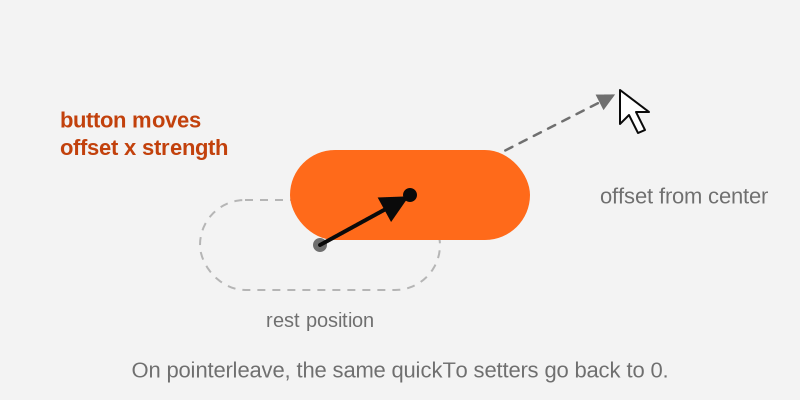
A magnetic button drifts toward the pointer while hovered and springs back on leave. It is the same quickTo idea, applied to the button. This is the component I use on this site, trimmed a little:
useGSAP(
  () => {
    const el = ref.current;
    if (!el || prefersReducedMotion() || !window.matchMedia("(pointer: fine)").matches) return;

    const xTo = gsap.quickTo(el, "x", { duration: 0.25, ease: "power2" });
    const yTo = gsap.quickTo(el, "y", { duration: 0.25, ease: "power2" });

    const onMove = (e: PointerEvent) => {
      const r = el.getBoundingClientRect();
      xTo((e.clientX - (r.left + r.width / 2)) * strength);
      yTo((e.clientY - (r.top + r.height / 2)) * strength);
    };
    // Return through the same setters. A separate tween with overwrite
    // would kill quickTo's tweens and freeze the effect after one hover.
    const onLeave = () => {
      xTo(0);
      yTo(0);
    };

    el.addEventListener("pointermove", onMove);
    el.addEventListener("pointerleave", onLeave);
    return () => {
      el.removeEventListener("pointermove", onMove);
      el.removeEventListener("pointerleave", onLeave);
    };
  },
  { scope: ref },
);
The comment in the code is there for a reason. If you send the button home with gsap.to(el, { x: 0, y: 0, overwrite: true }), that kills the tweens inside quickTo, and the button stops responding after the first hover. Keep every move on one property going through the same quickTo function. A strength of 0.3 to 0.4 is enough; more than that and the button moves away from the click.
Hide the custom cursor on touch devices and for reduced motion
A touch screen has no hover and no pointer to follow, so a follower there is a dot that jumps to wherever you last tapped. Check (pointer: fine) before you set anything up. It is true for a mouse or trackpad and false for a finger. A laptop with a touch screen still reports a fine primary pointer, so it gets the cursor, which is what you want.
A trailing shape that follows every hand movement is also the kind of motion that can bother people with vestibular disorders. If they ask the OS for reduced motion, skip the custom cursor and leave the system cursor alone. My post on reduced motion with GSAP matchMedia shows how to handle this and other cases in one place.
Keep the real cursor unless you replace it well
Hiding the system cursor is a bigger choice than it looks. The system cursor respects the user's size and color settings, which some people with low vision rely on. A custom cursor does not. My rules:
- Only hide the native cursor when the custom one sits exactly on the pointer, with no lag on the part you aim with. On this site the shape is placed with
gsap.seton every move, with no easing. - Hide it with a class that JavaScript adds after setup, like
html.has-cursor { cursor: none; }. If the script fails, people keep their cursor. - Do not hide the text cursor on inputs and textareas. People need it to place the caret.
- Give the follower
aria-hiddenandpointer-events: none, and keep visible:focus-visiblestyles. Keyboard users never see the cursor, so hover-only labels must not carry information they need.
If you only want a trailing ring for style, keep the system cursor and let the ring follow it. That is the safest version, and the one I suggest for most product sites.
Wrapping up
A good GSAP cursor follower is small: quickTo for each axis, one pointerover listener reading data attributes for hover states, and setup that only runs for fine pointers and full motion. Magnetic buttons use the same tool. Be careful about hiding the real cursor, and remove every listener and ticker function in cleanup. For the wider setup, my guide on GSAP in the Next.js App Router shows where these components live. If you want details like this designed and built for your site, see how I work on motion.
Frequently asked questions
Does a custom cursor hurt performance?
Not if you build it right. Move it with transforms only (x and y), use quickTo or a single ticker function instead of a new tween per mouse move, and give it pointer-events: none. Avoid blur filters and large blend mode layers on the follower, because those make the browser repaint a big area every frame.
Why does my custom cursor lag behind on fast moves?
That is the follow duration. A quickTo with a duration of 0.6 seconds is always up to 0.6 seconds behind. Keep a small dot that follows instantly and let only a larger ring lag, or lower the duration to around 0.15 to 0.3 seconds so the cursor feels attached.
Should I hide the default cursor?
Only when your custom cursor fully replaces it, sits exactly on the pointer, and only on devices with a fine pointer. Hide it with a class that JavaScript adds after setup, so the real cursor stays if the script fails. Keep the text cursor on inputs and keep visible focus styles for keyboard users.
Can I build a cursor follower without GSAP?
Yes. A requestAnimationFrame loop that moves an element a fraction of the way to the pointer each frame (a lerp) works fine. GSAP saves you the loop, gives you eases, and makes hover state changes, morphs and cleanup in React much shorter, which is why I use it.
Related guides



Next article
Next.js vs Webflow for startups: which to pick for your website
Webflow wins more often than developers admit. Next.js wins when the site has to do more than explain. Here is how I decide, with costs over two years.
Read